
XEQ WebADB — DUMP Permission
What you need before you start
You need the phone with XEQ, a USB data cable, and either a computer or a second Android smartphone. No PC required if you use two Android phones.
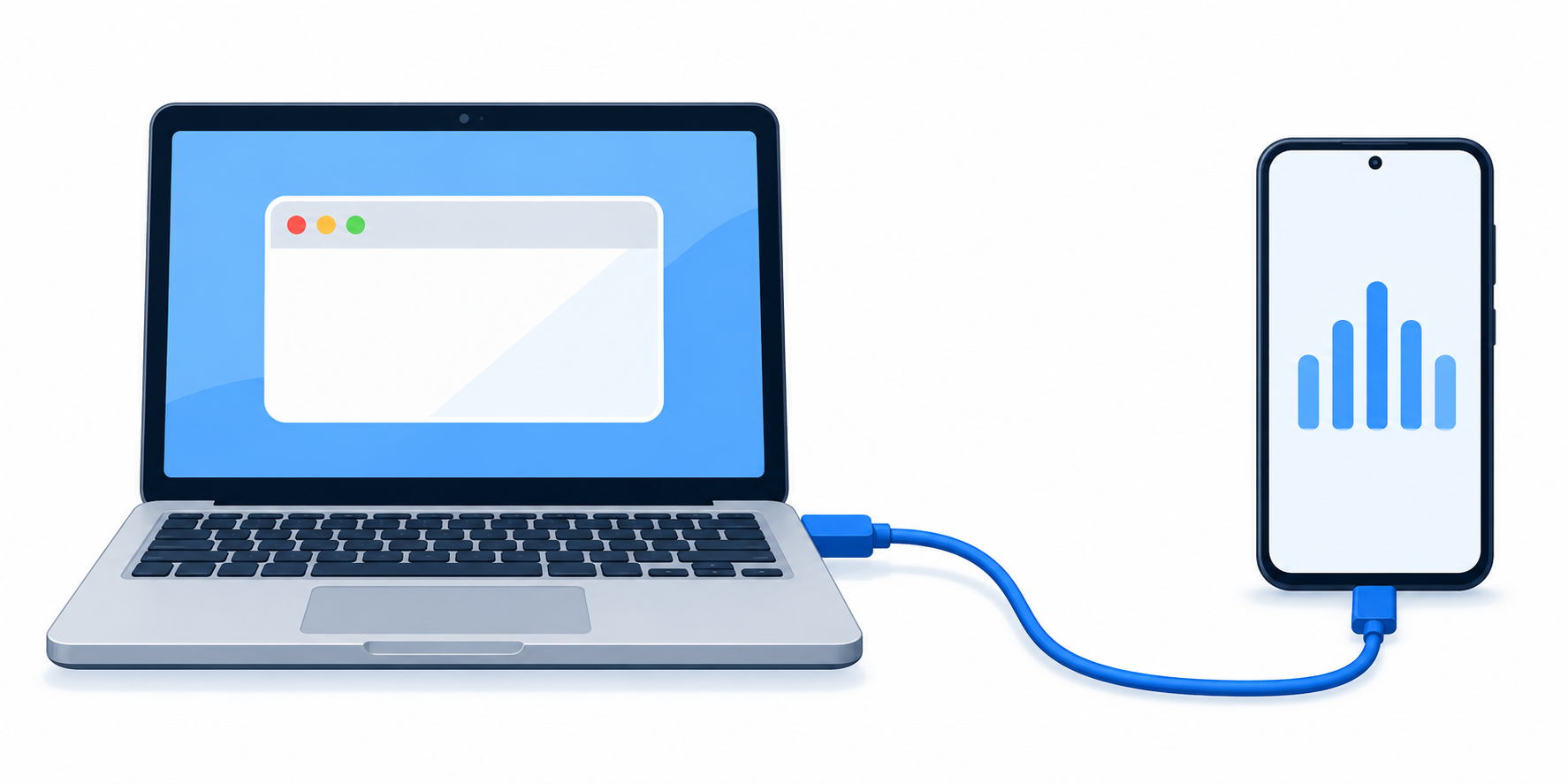
Open this page on the computer. XEQ runs on the phone.
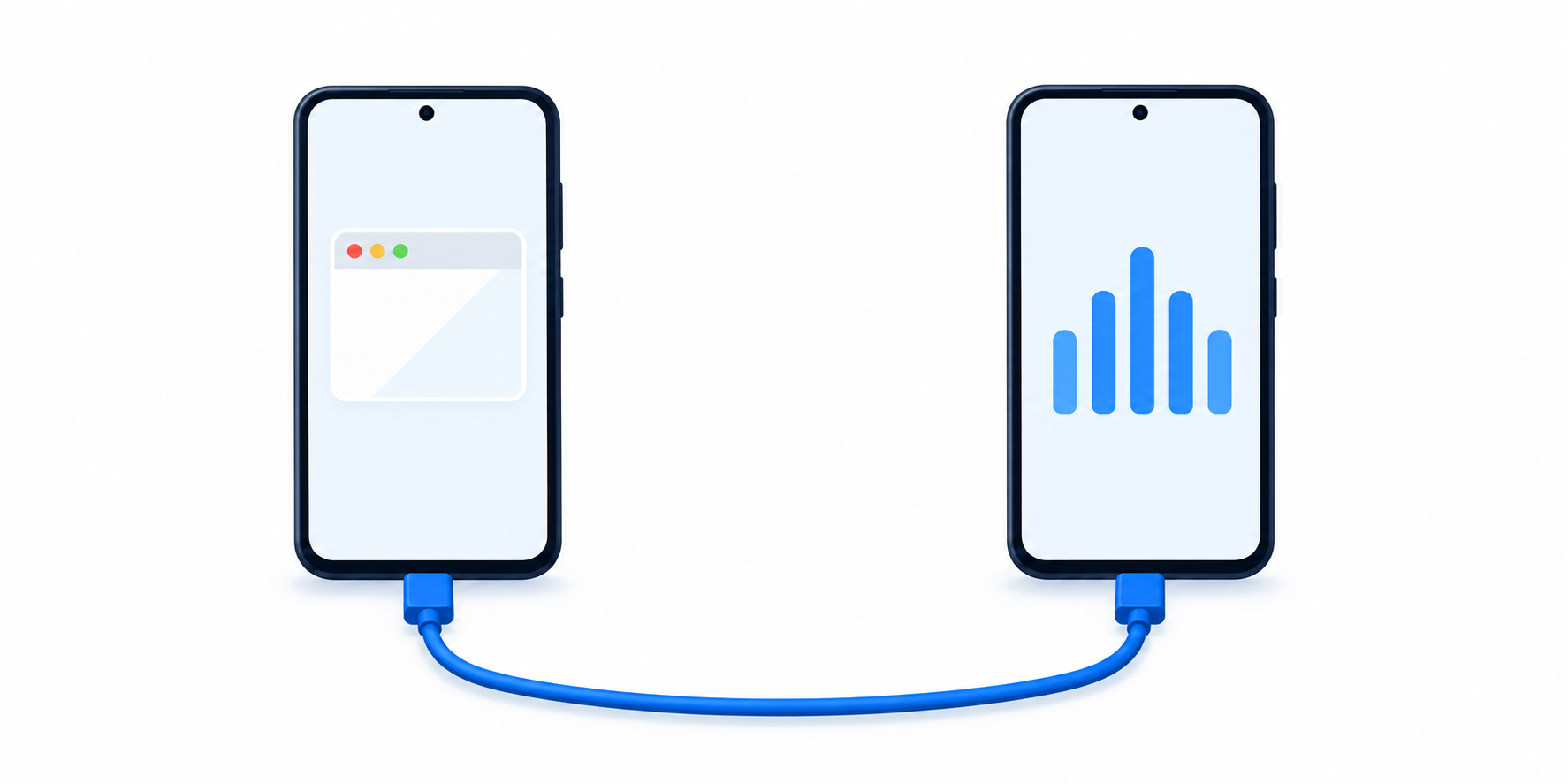
Open this page on the left phone. XEQ runs on the right phone.
Have one of these two setups ready before continuing. Connecting two Android phones may also require a USB OTG adapter.
About this permission
This tool only grants or revokes XEQ's Android DUMP permission. It does not root your phone, unlock its bootloader or modify its firmware.
You can revoke DUMP permission at any time. Reconnect the phone and select Revoke DUMP permission below, or use the manual ADB revoke command. XEQ features that depend on DUMP will then stop working.
Compatibility and results depend on your device and Android version. This page does not guarantee manufacturer warranty coverage: your manufacturer's terms and applicable consumer law determine your rights. Only configure a device you own or are authorized to manage. Nothing in this notice limits rights that cannot legally be excluded.
Enable DUMP permission for XEQ's advanced player recognition. Your phone connects directly to this browser: no ADB commands or device results are sent to our server.
1. Prepare your devices
- Install XEQ on the phone you want to configure.
- Enable Developer options and USB debugging on that phone. Watch the video guide (YouTube).
- Open this page on a computer (PC or Mac) using Chrome or Edge, or on another Android smartphone using Chrome. Connect the phone with XEQ to that computer or smartphone using a USB data cable. Android-to-Android connections may need a USB OTG adapter. You need two separate phones if you use this method; a phone cannot connect to itself.
- Unlock your phone. Click Add device, choose your phone, then click Connect and accept the USB debugging prompt on the phone.
Device-specific help and connection problems
- Xiaomi devices may also require USB debugging (Security settings).
- On Samsung devices, check USB control settings: the target phone should use “This device”, while an Android host should use “Connected device”.
- If the USB interface is busy, close other WebADB tabs and Android management tools. If a native ADB server is running on your computer, stop it with
adb kill-server. - Try a different data cable or USB port. On Windows, your device may need its manufacturer's ADB driver.
2. Connect
Loading WebADB…
3. Manage DUMP permission
App: com.frack.xeq
Permission: android.permission.DUMP
DUMP permission: Unknown
After granting permission, open XEQ's advanced recognition settings and use its access check. You must also enable notification access and advanced recognition in XEQ; this page does not enable them automatically.
Manual ADB commands
If WebUSB is unavailable, use Google's Android Platform Tools on your computer:
adb shell pm grant com.frack.xeq android.permission.DUMP
adb shell pm revoke com.frack.xeq android.permission.DUMP
Requires HTTPS and a browser with WebUSB support. Safari, Firefox and iPhone/iPad browsers are not supported. Only XEQ and its DUMP permission can be changed here. This tool supports the phone's main personal profile; work profiles and secondary users are not supported.
The browser stores an ADB authentication key locally. Disconnect closes the connection; it does not revoke Android's trust in that key. When finished, you can turn off USB debugging or revoke USB debugging authorizations in Developer options.